Your Copier Has More Logins Than Your Banking App. Here’s the 20-Minute Cleanup
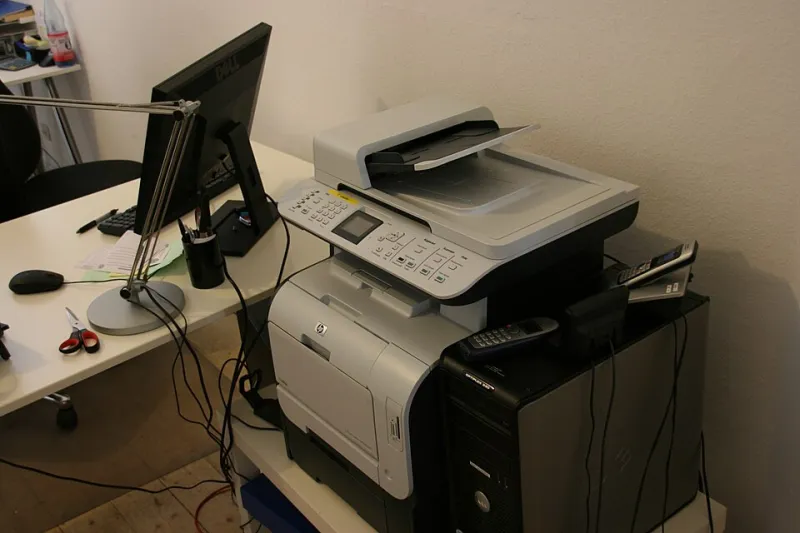
Photo: Photograph by Mike Peel (www.mikepeel.net)., CC BY-SA 4.0, via Wikimedia Commons
The office printer is easy to ignore. It sits in the corner, gets a little dusty, and only earns attention when a paper jam turns a Tuesday morning into a group project. But that same machine is also a small computer with a web interface, storage, email settings, and—too often—the factory admin password still intact.
This is not a call to panic. It is a call to spend twenty minutes on the least glamorous piece of tech in your office. In 2026, multifunction printers are capable enough to scan documents to email, save files to network folders, and accept jobs from phones. That convenience is useful. It also means the printer deserves the same basic hygiene as a laptop.
Here is a practical cleanup you can do without an IT hire, a consultant, or a dramatic all-hands meeting.
Start With the Sticker on the Back (2 minutes)
Find the model number and serial number. Print the device configuration page from the front panel if you can. Write down the printer’s network address—usually something like 192.168.1.50—because you will need it for the web interface.
While you are back there, check whether the model still receives firmware updates from the manufacturer. If it stopped getting support years ago, do not throw it out this afternoon. Just put it on a replacement list. An unsupported printer is a reason to plan, not a reason to spiral.
Update the Firmware Before You Fiddle (5 minutes)
Open a browser on a computer in the office and type the printer’s network address. You should land on a web dashboard. Find the firmware or system update section. Download updates from the manufacturer’s own site—not from a random search result, and not from a file someone forwarded with the subject line 'printer fix.'
Run the update after hours if the printer is busy. Note the firmware version before and after. If the dashboard has an auto-update option and you trust the vendor, turn it on. If not, put a reminder on the calendar twice a year. That is enough for most small offices.
Change the Admin Password—Yes, That One (3 minutes)
This is the step people skip. Many printers ship with a default administrator login like 'admin' and a password like 'admin' or 'password.' Those defaults are published in manuals and known to anyone who has set up the same model. Change the password to something unique and store it in your password manager.
Do not reuse the Wi-Fi password. Do not use the front-desk login. If the printer dashboard lets you disable remote administration from the internet, do that. If you need cloud printing, use the vendor’s own service rather than opening a port to the outside world.
Turn Off the Features Nobody Uses (4 minutes)
Printer dashboards are packed with protocols and services. Most small businesses use a fraction of them. Look for options like FTP, Telnet, UPnP, and raw printing. If you do not know what they do and nobody on your team uses them, turn them off.
Check whether the printer accepts jobs directly from the internet. Check whether USB printing is enabled when nobody needs it. Check whether the address book is open to anyone who walks up to the panel. None of this takes long, and each small switch reduces the number of ways the device can be misused.
Treat Scan-to-Email Like a Tiny Mail Server (3 minutes)
Scan-to-email is one of the best features on a modern copier, and one of the easiest to leave messy. Look at the account the printer uses to send mail. Is it the owner’s personal email? Is the password stored in plain sight? Does every scan go to a shared inbox that half the office can access?
Use a dedicated service account with limited permissions. Keep the credentials in your password manager. Restrict the address book so staff cannot casually send scanned documents to any address they type in. If the printer supports it, set a subject prefix like 'Scan from front office' so recipients know what they are opening.
Deal With the Old Machine Before It Leaves the Building (3 minutes)
When a printer is retired, it often gets moved to a closet, donated, or sold. Before that happens, wipe its storage. Many office printers keep a hard drive or internal memory that can hold copies of scanned documents, address books, and network settings. Use the manufacturer’s sanitization or erase feature if it exists. If it does not, remove the storage drive and destroy it.
Do not hand a machine to a recycler with the company address book still loaded. Do not donate it with scan-to-email credentials intact. A five-minute wipe is cheaper than a conversation about why a former client’s paperwork was found on a secondhand copier.
Put the Twenty Minutes on the Calendar
You do not need to become a printer security expert. You need a repeatable habit. Twice a year, update the firmware, check the admin login, review scan-to-email settings, and confirm that the machine is not exposing features you never use. Add the printer to your offboarding checklist too—when someone leaves, remove their scan-to-email account and any saved address-book entries tied to them.
The printer is listening, sure. But it is also just another small computer in the office. Give it twenty minutes of attention, and it becomes a lot less interesting to anyone who should not be poking around in it.